About Magicbit Neo

Redefining Innovation

What is Magicbit Neo?

Magicbit Neo is an all-in one package to start learning microcontroller programming for everyone.

This board includes the latest features of the flagship Magicbit Core board for robotics, enabling a wide range of related Arduino programming as well as hands-on activities from Python and Scratch. It will provide a distinct advantage to the users.

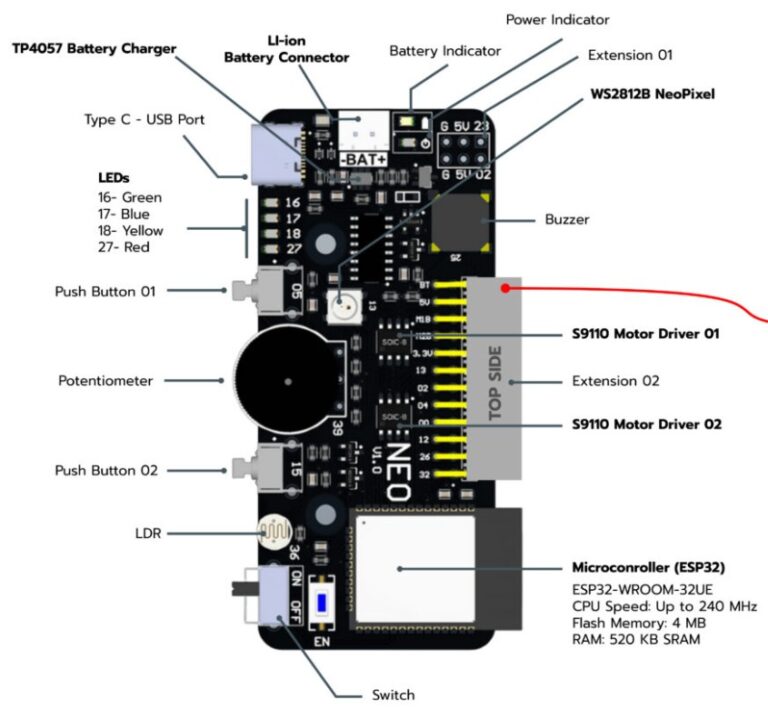
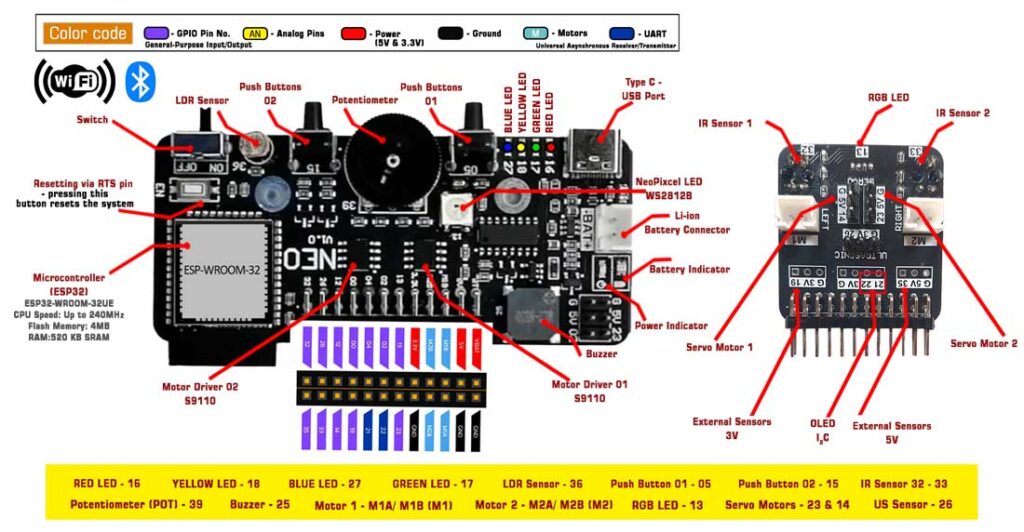
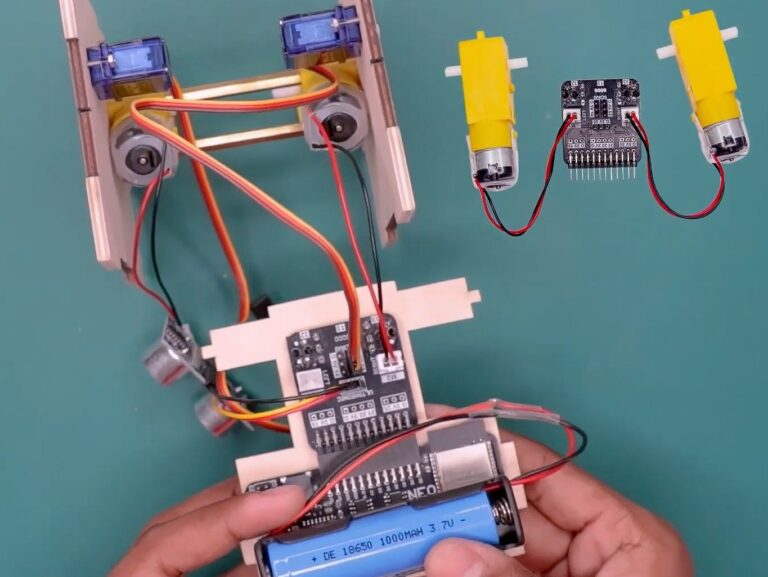
This circuit board is installed with many features. Wi-Fi, Bluetooth, Potentiometer, Pushbuttons,
4 x LEDs, Buzzer, LDR, NeoPixel RGB LED bulb, Dual
Motor Driver and two IR sensors etc.

This board has many of the above features for creative hardware projects and experiments and it has become popular as a versatile platform.

How to install Magicbit (Neo/ Devlopment) boards

Magicbit is based on ESP32 and Arduino core because Magicbit is forked from the espressif/arduino-esp32. Therefore, to program a Magicbit with the Arduino IDE, you will have to go through the following steps.

  • Release Link – https://github.com/magicbitlk/arduino-esp32/releases/download/Magicbit/package_magicbit_index.json

  • Install the current Arduino IDE at the 1.8 level or later.
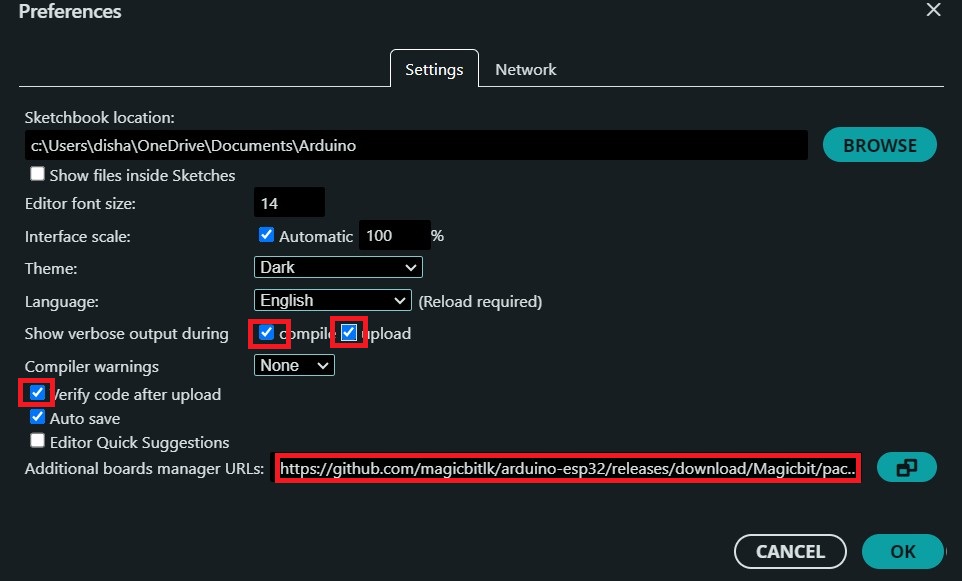
  • Start Arduino and open the Preferences window.
  • Enter the release link above into the Additional Board Manager URLs field. You can add multiple URLs, separating them with commas.
  • Open Boards Manager from Tools > Board menu and install Magicbit platform (and don’t forget to – – select Magicbit from Tools > Board menu after installation). 

Powering Up

Magicbit can be power up by either connecting a USB cable or connecting a battery. For programming, a USB cable must be connected to the computer. For the first time powering up the Magicbit self-test program will be running on the Magicbit and you can see the features available and functional tests on the Magicbit display.
 

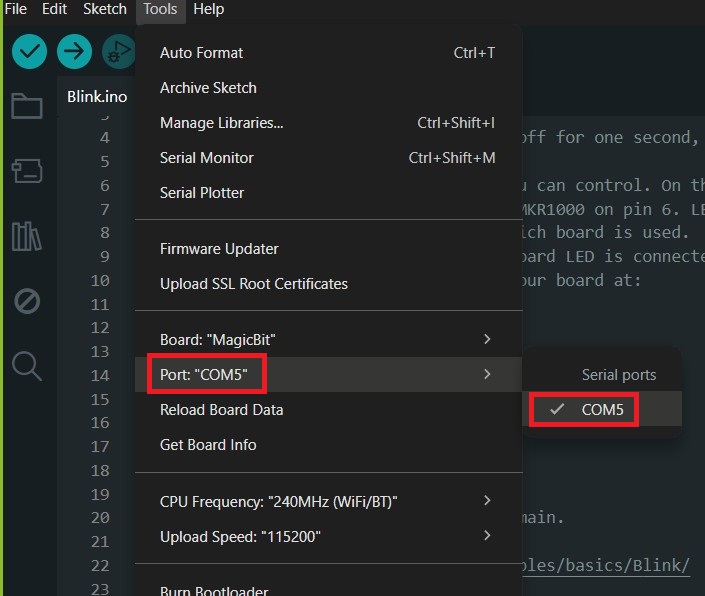
To check whether drivers are correctly installed, open the Arduino IDE and go to the Tools menu. There should be a port (Eg: COM1) shown when plugging Magicbit into the computer, as shown below. If not please follow the Installation drivers section.

Installation Drivers 

Magicbit has a CH340 chip as a USB-Serial converter which the driver is already packaged with Arduino IDE. If the port is not shown in the Arduino as shown below, please install the driver from the Magicbit utility.

Your First Project…

  • Open Arduino IDE if not opened already
  • Select Magicbit from Tools ⇒ Boards
  • Select port Tools ⇒ Ports
  • Open Blink Example File ⇒ Examples ⇒ Basic ⇒ Blink
  • Upload the code to the Magicbit using the upload button on Arduino IDE
  • If the Green LED on the backside of the Magicbit is blinking, you have just begun the magic with Magicbit!

Programming Magicbit Neo

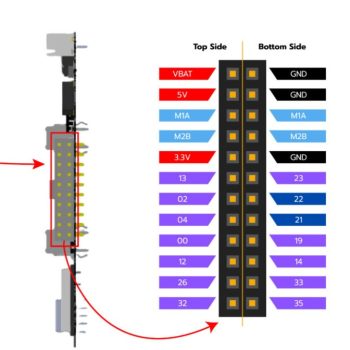
Magicbit Neo Layout

ScreenHunter_1195 Sep. 20 22.36

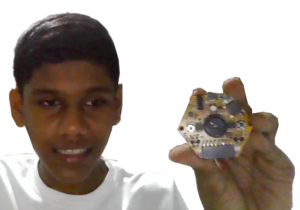
Students with Magicbit Neo

Magicbit Neo is limitless